Public Ticket #2662203

Billing Field Sort Order Wrong On Checkout Page

Closed
Comments
6 Tickets 10
Chuck started the conversation 6 years ago on January 18, 2021 at 12:19am

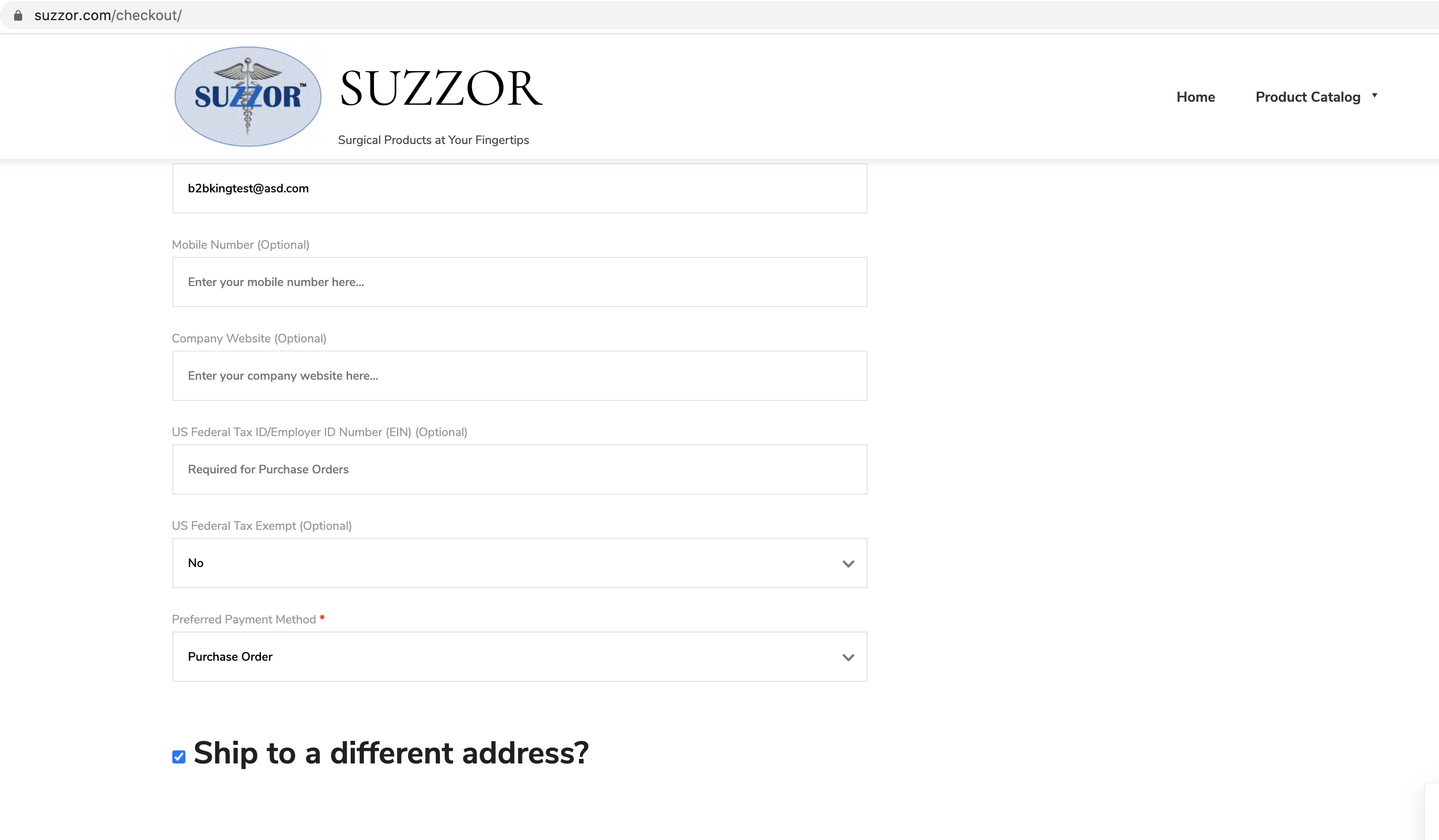
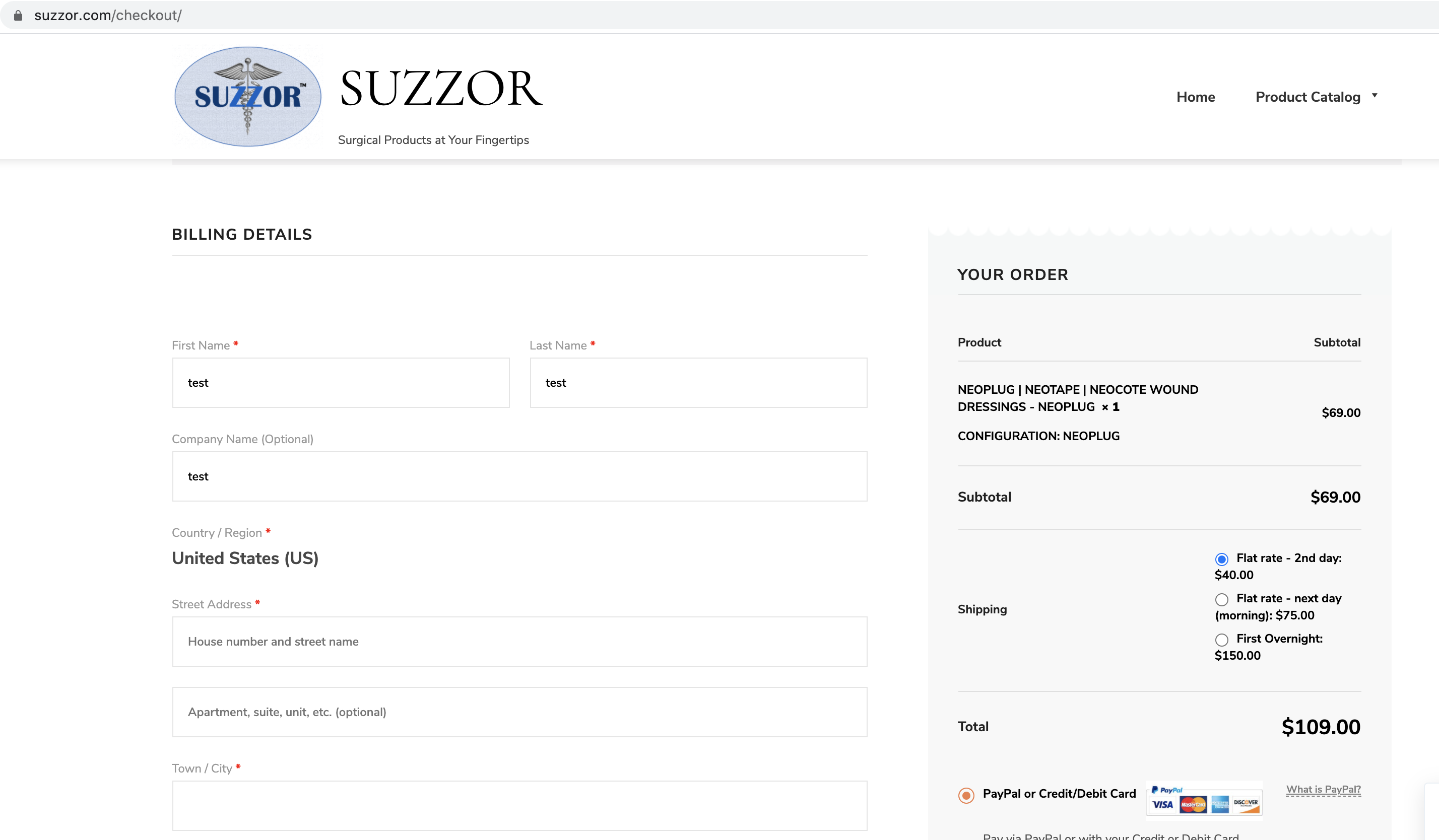
I added additional Registration Fields and set their Sort Order and enabled them in the Billing Options.  Everything works fine on the Registration page, but on the Checkout page the Billing Detail fields are in a completely random order.  They are mixed in with the standard fields such as Name, Address, etc. I tried adjusting the Sort Order of the Registration Fields, but it doesn't fix the sort order problem on the Checkout page. See attachment of the new Registration Fields mixed in with the standard fields.  This is completely unusable like this. How can I get the sort order to be correct on the Checkout page?

2,762
KingsPlugins replied 6 years ago on January 18, 2021 at 9:48pm

Hi Chuck,

Sorry to hear about this,

Those fields should be at the end of billing / end of the form, not randomly in the page.


I think most likely this is a CSS (Styling) conflict with the theme. That can be easily tested by switching to the default WooCommerce theme (Storefront) and checking if that fixes the issue.

If you can give me a link to your checkout page so I can see this, I can probably send you a CSS snippet to correct the issue.


I can also set up the snippet / fix the issue directly if you can provide us with a temporary login to the site or a staging clone site.


Kind regards,

Stefan


6 Tickets 10
Chuck replied 6 years ago on January 20, 2021 at 6:48pm

Hi Stefan,

I approved your account and verified your email, so you should be able to use it now.

FYI, I also noticed in your User profile it's adding into the Other Roles the Group.  How do I turn that off?  I just want the user Role to be Customer (not Customer & Group), and use the Group field for other purposes.  

Thanks,

Chuck

2,762
KingsPlugins replied 6 years ago on January 21, 2021 at 11:20pm

Hi,

At the moment I am not able to replicate the issue.

I have tried with Google Chrome:8167932383.png

5633526022.png


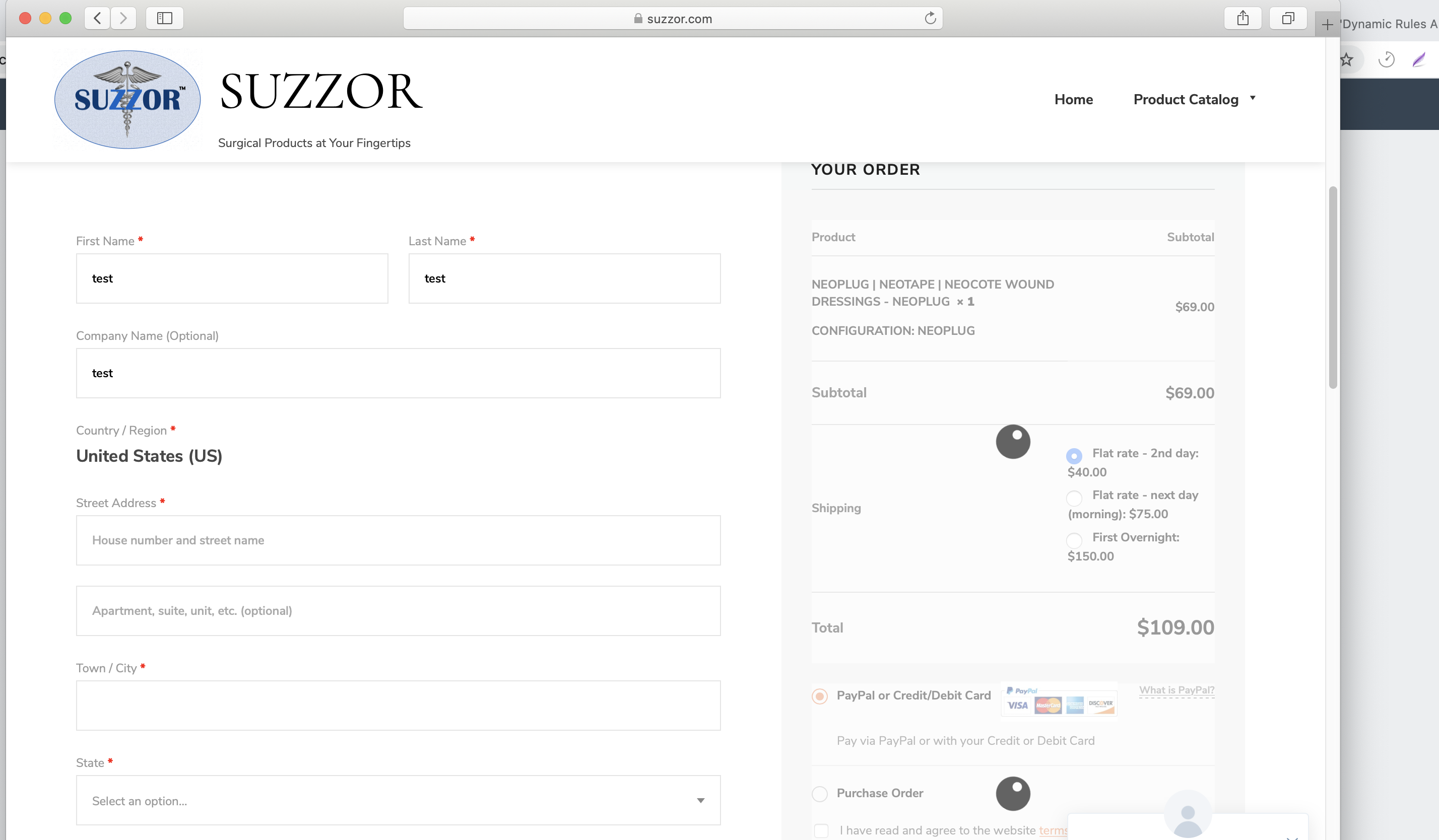
I have also tried with Safari browser:

4332495633.png


I have also tested with multiple resolutions and I am not able to see this issue.


Looking more at your previous screenshots, my belief is that this is related to another plugin / some sort of conflict. Very possibly it could be related to a caching plugin, especially if you use a functionality such as Optimize CSS / Minify CSS.

My suggestion would be to look at deactivating other plugins except WooCommerce and B2BKing and run some tests with other plugins deactivated.


I am also happy to assist more if you can provide more information or a way for me to replicate the problem.


Regarding "I also noticed in your User profile it's adding into the Other Roles the Group. ", yes this is correctThe only reason the plugin adds roles is to make it more compatible with 3rd party plugins that use roles - so those plugins can leverage b2bking groups. These roles do not have any negative effect on the site, no performance effect or anything else - b2bking alone does not use the roles. Since these roles have no effect other than serve as a possible anchor for other plugins, we have not added a setting to disable this behaviour. Is there something we have omitted here?  


Kind Regards,

Stefan

6 Tickets 10
Chuck replied 6 years ago on January 22, 2021 at 12:00am

Hi Stefan,

It's Firefox that has the problem.  I tried it with Chrome and there is no problem.  I tried turning off the WS-Optimize Minify setting, but it still doesn't display correctly in Firefox.  What do you think is causing it?  Any fix?


For adding the Group into the Other Roles, can you make that an optional setting?

I have another question:  What would be the best way to have one user only be able to see the products in one Category?  To do this I created a special Group and assigned it to this one user, and then went into the product Category in the Group Visibility section and selected only that Group, but then I assume I have to go into all the other Categories and check all the other Groups, except that special Group.  I have a lot of categorizes, so is that the best way to do this? 

Thanks,

Chuck

6 Tickets 10
Chuck replied 6 years ago on January 22, 2021 at 12:44am

Hi Stefan,

For my last post in the last item about Category Viability, I was able to get it working as far as hiding products in all the categories except one category that the specific user is allowed to see, but now all the other categories without any products are getting 404 errors when picking any of those categories in the menu.  It should get the normal message: "There are no products found".   I tried the steps in the help document about disabling & reactivating the plugin, turning off the cache, going to WooCommerce>Settings>Advanced and pressing Save, but nothing fixed the 404 error for categories without products.  How can I fix this problem?

Thanks,

Chuck

6 Tickets 10
Chuck replied 6 years ago on January 26, 2021 at 3:14am

Hi Stefan,

For the 404 errors, your fix worked.  Thanks! 

For the Firefox issue with random field order, I was able to determine it only happens when logged in as an Admin.  When I login as a test user (non-admin) it doesn't happen.  The same issue happens with Chrome as well.  Random field order occurs when logged in as admin, but works fine when logged in as a non-admin user.  Any ideas why this is happening?

Thanks,

Chuck

2,762
KingsPlugins replied 6 years ago on January 26, 2021 at 6:58pm

Hi Chuck,

Glad the 404 issue is fixed.


Regarding fields, that does make sense actually, I overlooked that you were seeing things as admin. There is indeed code in the plugin that does not work for admin/shop manager: specifically there is code to hide products/fields/prices that cannot work for admin/shop manager because it would create issues in the backend when managing products.


We didn't realise this can create conflicts in the checkout page for admin. It's something we need to look at more.

6 Tickets 10
Chuck replied 6 years ago on January 27, 2021 at 5:05am

But now when I'm not logged in the Product Catalog menu link says: "No products were found matching your selection."

What setting is causing that?

2,762
KingsPlugins replied 6 years ago on January 28, 2021 at 1:33am

Hi,

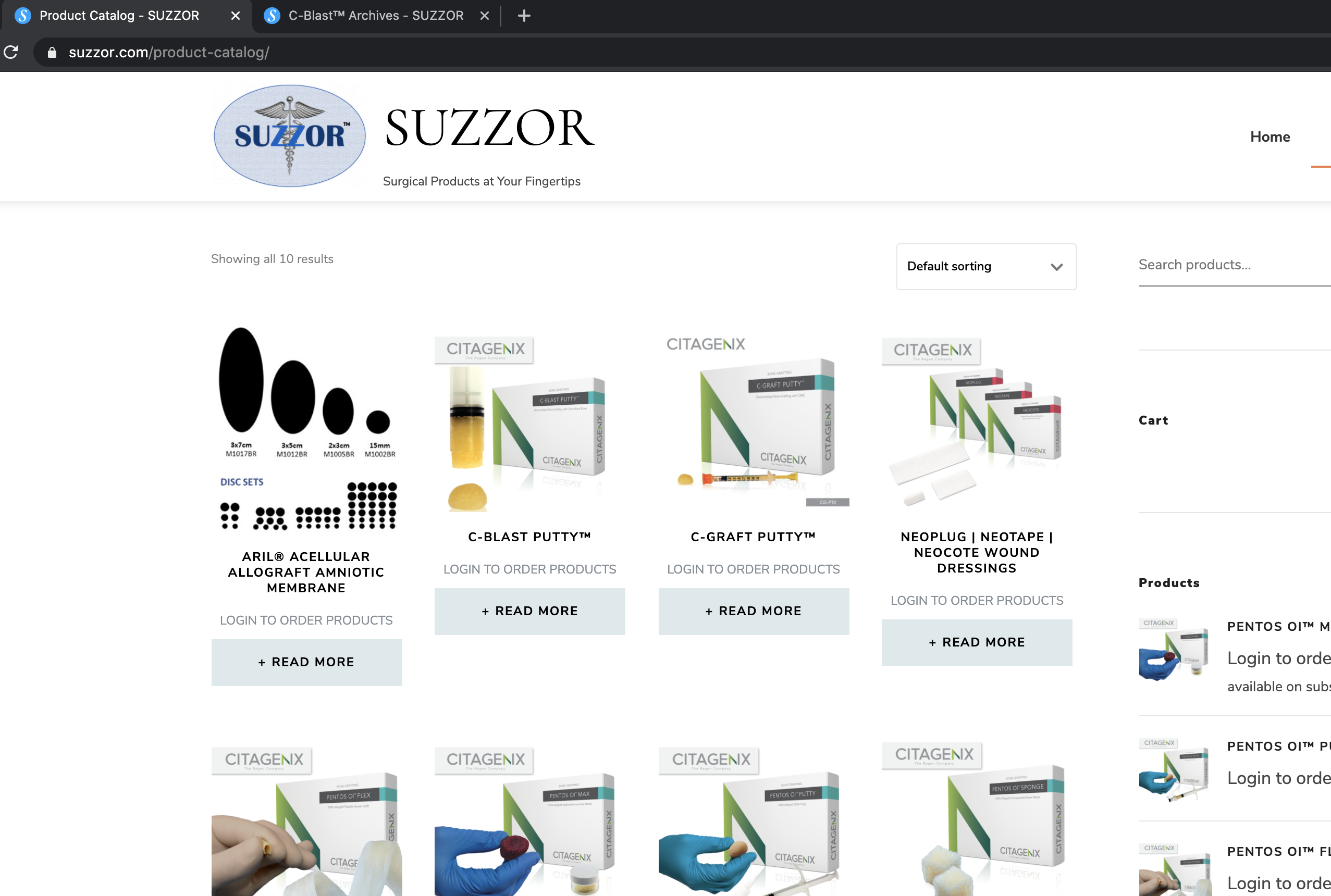
I am checking the website as Not Logged In, but I can see items in the product catalog page:

3821254717.png

Did you fix the problem?

Or can you clarify for me please?


6 Tickets 10
Chuck replied 6 years ago on January 28, 2021 at 1:41am

Hi Stefan,


Talk about timing!  i just finished going into each category and carefully assigning the groups, including the logged off user group, and I just saw it started working at about the same time you did.  I didn't even have time to update the ticket before you responded.

Thanks for checking so quickly!

Chuck

1
6 Tickets 10
Chuck replied 6 years ago on January 31, 2021 at 8:57am

Hi Stefan,

For some reason the random fields are showing up again on the Checkout page, but this time for a Customer role, not just an Admin role.  But what's interesting is that I set a test user to an Admin temporarily and then back to a Customer, but the random fields are happening.  I cleared the cache and even went to Chrome and it's acting like it's still an Admin with the random fields on both Firefox and Chrome.  I then created a new user as a Customer and the random fields don't happen.  Any ideas?  

2,762
KingsPlugins replied 6 years ago on February 11, 2021 at 6:18am

Hi,

I've looked more through the site and tested the checkout multiple times but I'm not sure what would cause it, and I am not able to replicate it in any of my tests.

It may be helpful if, when you see the checkout with that issue, you would Right Click -> Save the page (complete page), and send it over to us, complete with the files folder. Based on that page I may be able to add some CSS to force the page to display correctly at all times.


2,762
KingsPlugins replied 6 years ago on February 16, 2021 at 8:59pm

That's great, thank you.

While I'm still not sure exactly what's causing it, I believe this javascript snippet added to your site should fix the problem. It takes all b2bking fields and moves them to the bottom of the billing section. It works in my tests on the page you sent me.

jQuery(document).ready(function(){
    if(jQuery('body').hasClass('woocommerce-checkout')){
        jQuery('.woocommerce-billing-fields__field-wrapper p').each(function(index,value){
            if (jQuery(this).attr('id').startsWith('b2bking_custom_field')){
                var abc = jQuery(this).detach();
                jQuery('.woocommerce-billing-fields__field-wrapper').append(abc);
            }
        });
    }
});

To add the snippet, see our guide here:

https://b2bkingplugin.com/docs/how-to-add-a-snippet-php-or-js/

Kind regards,

Stefan

6 Tickets 10
Chuck replied 6 years ago on February 17, 2021 at 3:58am

Hi Stefan,

Thanks for the help.  The snippet code is getting the following error when I try to activate it:

Parse Error : syntax error, unexpected ',', expecting T_VARIABLE on line 3
Parse Error : syntax error, unexpected ')', expecting T_VARIABLE on line 3
Parse Error : syntax error, unexpected 'var' (T_VAR) on line 5
Parse Error : syntax error, unexpected 'abc' (T-STRING), expecting ';' on line 5
Parse Error : syntax error, unexpected '=' on line 5

Thanks,

Chuck

2,762
KingsPlugins replied 6 years ago on February 17, 2021 at 8:41pm

Hi,

I think you're somehow inserting it incorrectly.

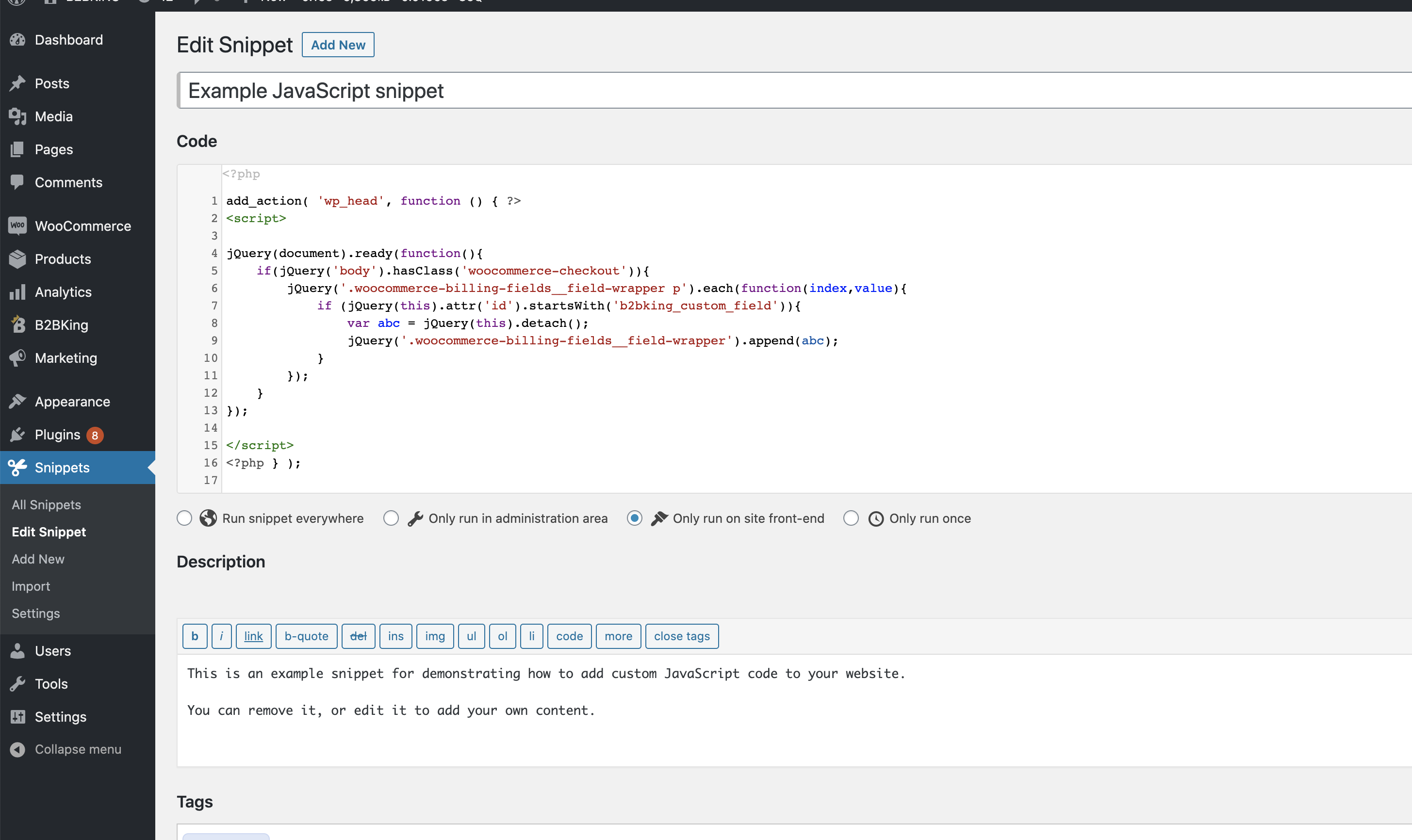
Please see my screenshot where I use the Code Snippets plugin. 

Basically you have to go to All Snippets->Edit the Example JavaScript snippet, add the code between the <script></script> tags, and Save.

Screenshot:

8600208792.png


6 Tickets 10
Chuck replied 6 years ago on February 18, 2021 at 3:19am

Hi Stefan,


It's interesting because I pressed the Clone snippet button so not to change the sample (just a preference of mine), but the clone button doesn't actually clone everything from the original. Who would know!  So when I added the missing parts from the original snippet, it works fine now.  Thanks!

If you ever find out what's causing the random field order, let me know so can remove the snippet code.  I never like to have unnecessary code.  

Thanks,

Chuck

1
2,762
KingsPlugins replied 6 years ago on February 18, 2021 at 6:09pm

Good to hear that worked.


Yes, of course, hopefully this is only a temporary fix - If I see this issue again or have a solution I'll reply back here to let you know. 


Kind regards,

Stefan


Sign In