Public Ticket #4556159

Customizing Hook Locations for B2b_public class

Closed
Comments
1 Ticket
Alexandra started the conversation 6 months ago on April 3, 2026 at 8:10pm

Hello! We are working on a new B2B portal using the B2BKing plugin. So far it's fantastic! But we are wondering a few questions:

  1. How do we remove hooks from the product page for this plugin? Specifically we are trying to remove the 'b2bking_purchaselists_productpage_button', and 'b2bking_show_custom_information_table' hooks so we can move them into different locations on the page. I've used three different methods but it doesn't seem to work. This is the current method we've been using.
  2. There are some CSS sheets we would like to entirely override - is there a way to do this? Or even better overwrite the templates for items like the offers on the My Account page?

Thank you!


2,762
KingsPlugins replied 6 months ago on April 4, 2026 at 8:25am

Hi Alexandra,

Thank you for purchasing our plugin!


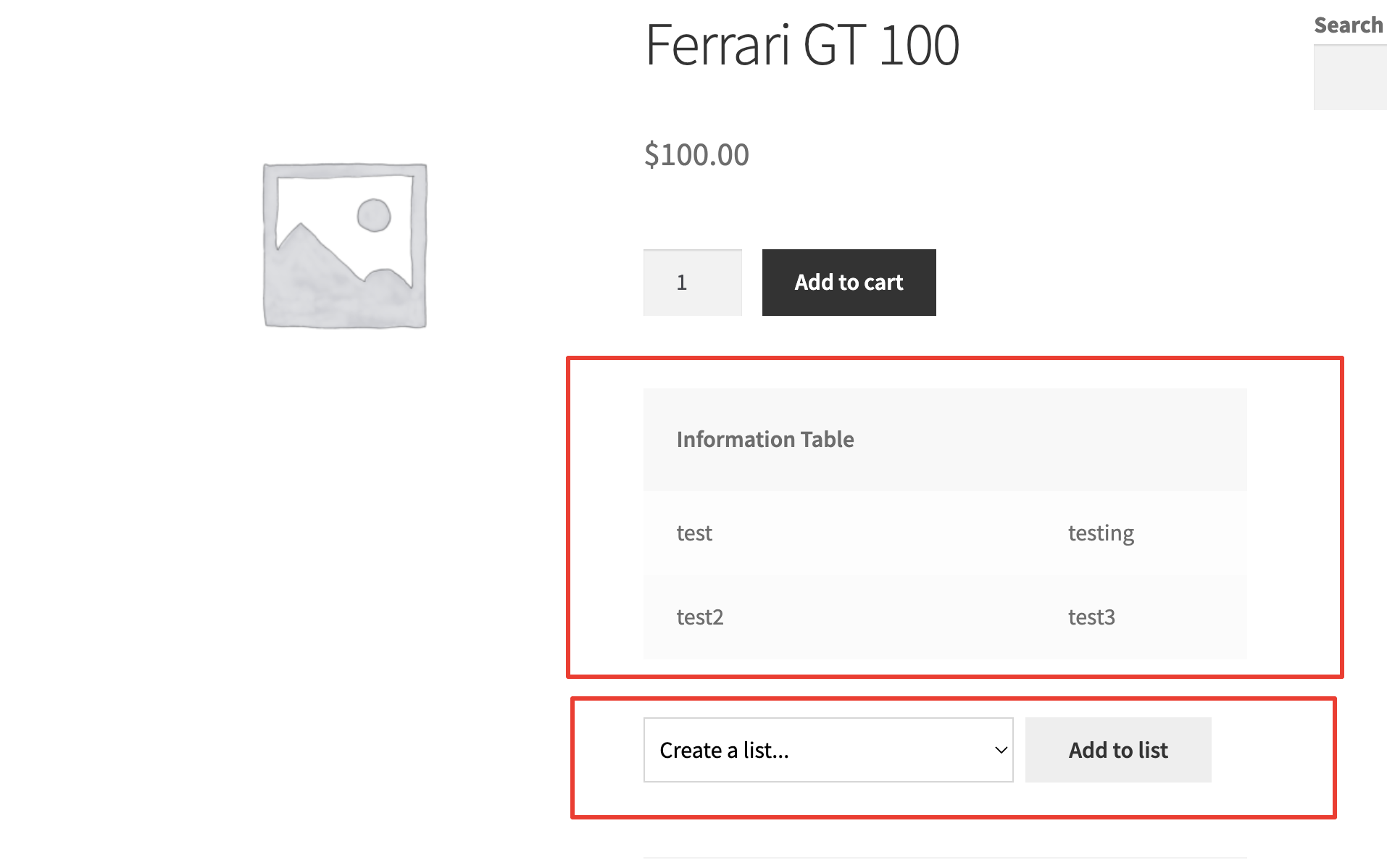
(1) If I understand correctly, I believe you are trying to move the Information table and the "Add to list" button on the product page, to a different location?


Just to make sure we are on the same page and looking at the same elements, these are the ones I am thinking of:

  • Product information table
  • Add to list button

5389076349.png


We can move them to a different location, with a code snippet.

You can use this snippet for those 2 elements:

add_action('wp', function(){
    global $b2bking_public;

    // replace 'woocommerce_after_single_product_summary' with any custom hook you want to use

    // 1. PURCHASE LIST BUTTON ON PRODUCT PAGE
    // Remove from default location
    remove_action('woocommerce_after_add_to_cart_button', array($b2bking_public, 'b2bking_purchaselists_productpage_button'));
    // Add it to a custom location
    add_action('woocommerce_after_single_product_summary', array($b2bking_public, 'b2bking_purchaselists_productpage_button'));

    
    // 2. CUSTOM INFORMATION TABLE ON PRODUCT PAGE
    // Remove from default location
    remove_action('woocommerce_after_add_to_cart_button', array($b2bking_public,'b2bking_show_custom_information_table'));
    // Add it to a custom location
    add_action('woocommerce_after_single_product_summary', array($b2bking_public, 'b2bking_show_custom_information_table'));
    
});

This code can be added to functions.php or any snippets plugin.


In the above code, I used 'woocommerce_after_single_product_summary' as a hook example - please replace it with the hook you are looking to use. 

You can find a list of product page hooks here: https://www.businessbloomer.com/woocommerce-visual-hook-guide-single-product-page/ - each hook corresponds to a different location on the page.


(2) To override CSS, the best approach would be to write custom CSS with high specificity.

Usually our CSS is quite specific, as we must make sure themes do not overwrite it.


For example, our CSS might look like:

.b2bking_product .b2bking_shop_table {background: white !important}

To override that, your custom CSS must have a higher specificity (usually that means using !important as well as more elements listed), for example:

.shop_page .another_element .b2bking_product .b2bking_shop_table {background: white !important}

This is more specific (more complexity / elements listed) and would work to override ours.


For templates on the My account page specifically, yes, sometimes the best approach can be simply to write your own custom function from scratch.

For example, for the "Offers" page, you can use this code snippet:

add_action('woocommerce_account_offers_endpoint', function(){
    ob_start();
}, 1);
add_action('woocommerce_account_offers_endpoint', function(){
    $content = ob_get_clean(); // removes existing content

    echo 1234; // echo your custom content here
    
}, 100);

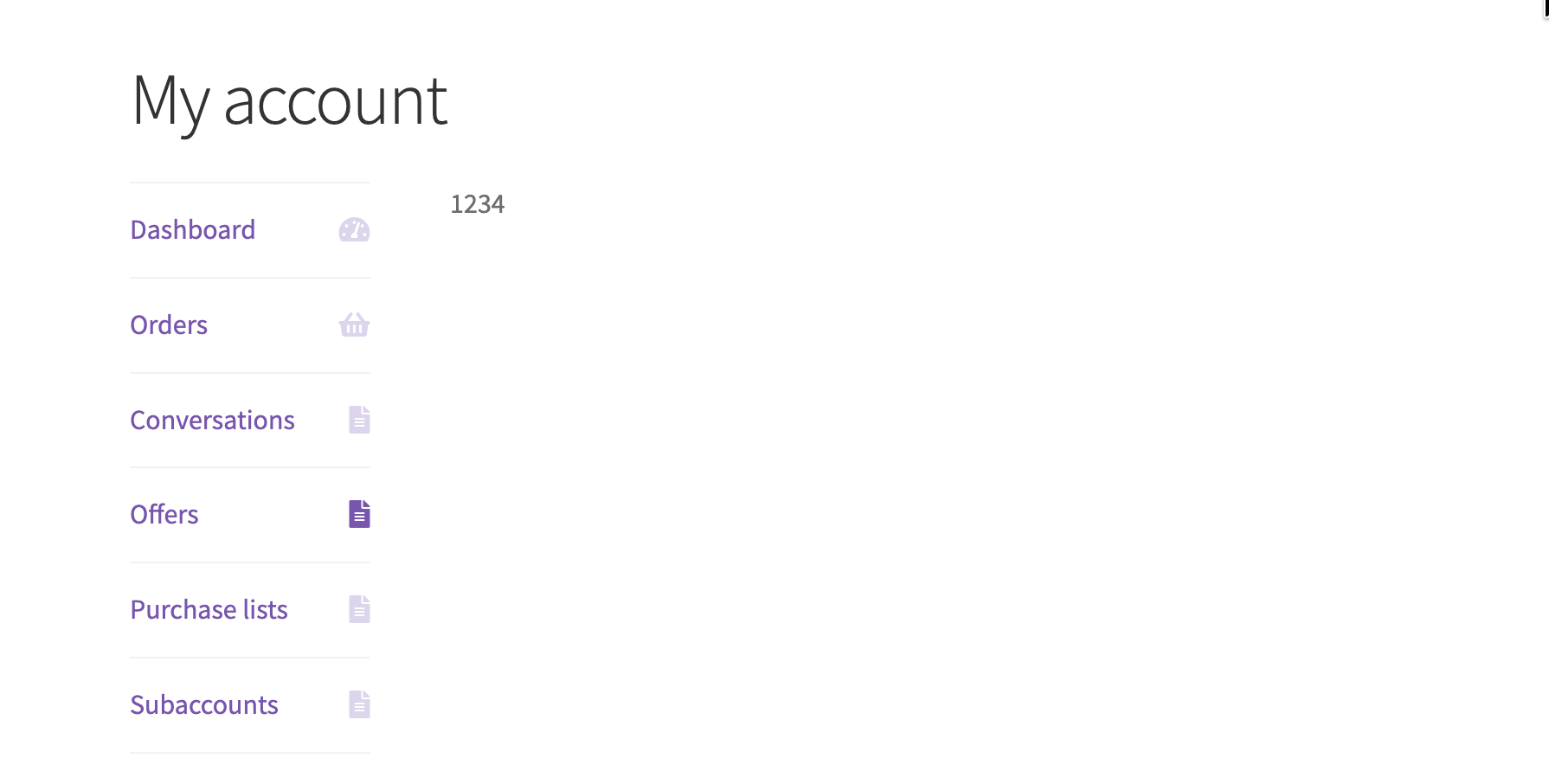
This will result in:

9465846104.png

Replace '1234' with your custom code.


If you need help writing custom templates, that is not something we can offer directly as part of support, but my recommendation to you would be to open the B2BKing plugin in an AI code editor like Cursor, Codex or Claude Code - these tools can usually achieve it.


Let me know if you have any questions,

Kind regards,

Stefan

1 Ticket
Alexandra replied 6 months ago on April 6, 2026 at 2:25pm

Hi Stefan,


Great those were the hooks that worked for me! Thank you for your thorough reply, we will make sure to follow these examples when implementing our custom code.


Thank you!

2,762
KingsPlugins replied 6 months ago on April 7, 2026 at 11:43am

Hi Alexandra,

Thank you for the update, that's great to hear.

If you run into anything else, or have any questions, please reach out anytime!

Kind regards,
Stefan

Sign In